
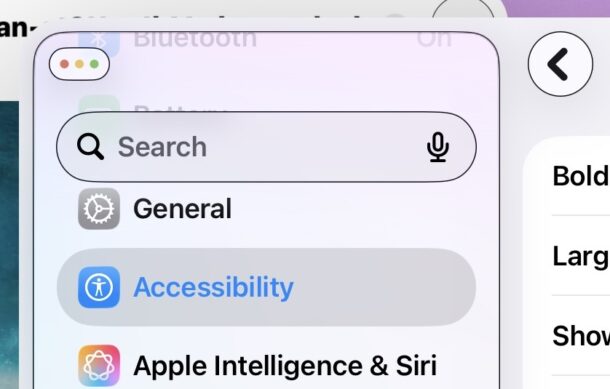
One of the big complaints about the Liquid Glass interface of iPadOS 26 and iOS 26 is that the user interface can be challenging to use, read, differentiate elements, and interact with. There are various toggles and settings that Apple has placed under the “Accessibility” category that can significantly improve the legibility and experience of interacting with the Liquid Glass interface on iPhone and iPad however, and one of those is something called “Show Borders”.
As you might have guessed by the name, “Show Borders” will draw a border around many interface elements that are otherwise low contrast and blended, making the Liquid Glass interface easier to use and quickly differentiate various visual elements and cues. This feature is available for both iPhone and iPad running the iOS/iPadOS 26 operating systems, but some users may find dit particularly advantageous on the iPad using the window-based multitasking system.
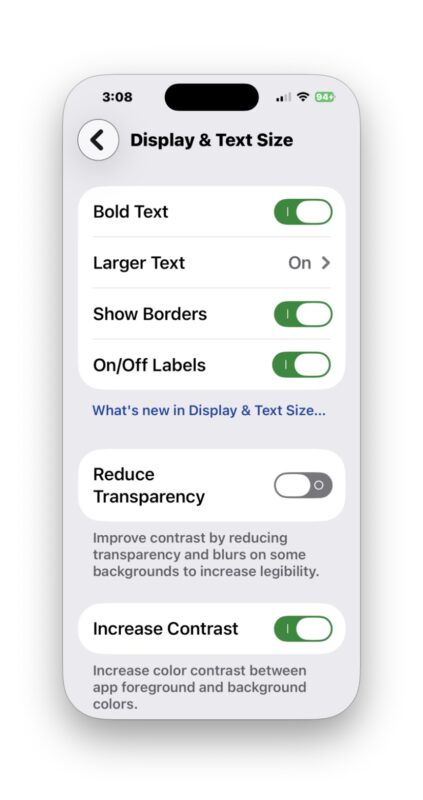
How to Show Borders on iPhone & iPad
- Open the “Settings” app on iPhone or iPad
- Go to “Accessibility” and then to “Display & Text”
- Toggle the switch for “Show Borders” to the ON position
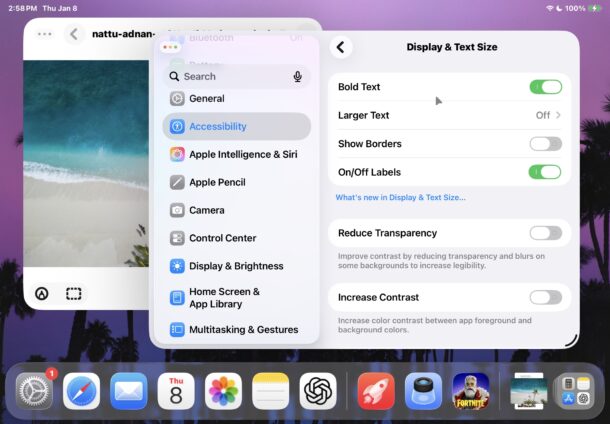
You can compare the setting toggled on and off in the screenshots below, here’s the setting off while in iPadOS 26 windowed-app mode:
And here’s the “Show Borders” setting turned on with the same iPad windowed mode:
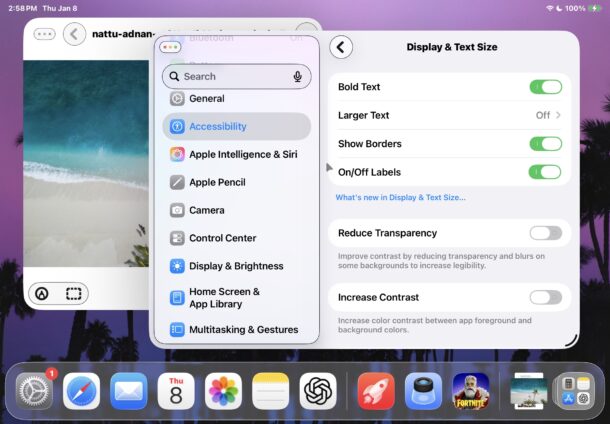
As you can see, the Show Borders option makes it much easier to see what certain elements within the user interface are.
Unfortunately this setting does not exist on the Mac in Tahoe, but a similar setting exists with “Increase Contrast” though on the Mac it typically looks quite garish and cartoony, unlike the Show Borders option on iOS/iPadOS. Another option for Mac users is to try a third party tool like Alan, which draws a border around the active foreground window on the Mac to make it more obvious which window is active and which is in the background.
What do you think of the Show Borders feature and Liquid Glass in general? Share your thoughts and experiences in the comments.